Groupwork
Confirm members, direction and timelines.
Workflow
An example 3D production workflow. Our workflow for a projection mapping installation:
- storyboarding and conceptual development
- building animation and motion graphics
- editing into sequences
- testing with projector and projection mapping software
- refining animation, motion graphics and edited sequences
Analysis of Video clips and Structures
What is motion design? Motion Plus Design – have a nice 9 min video answer for this.
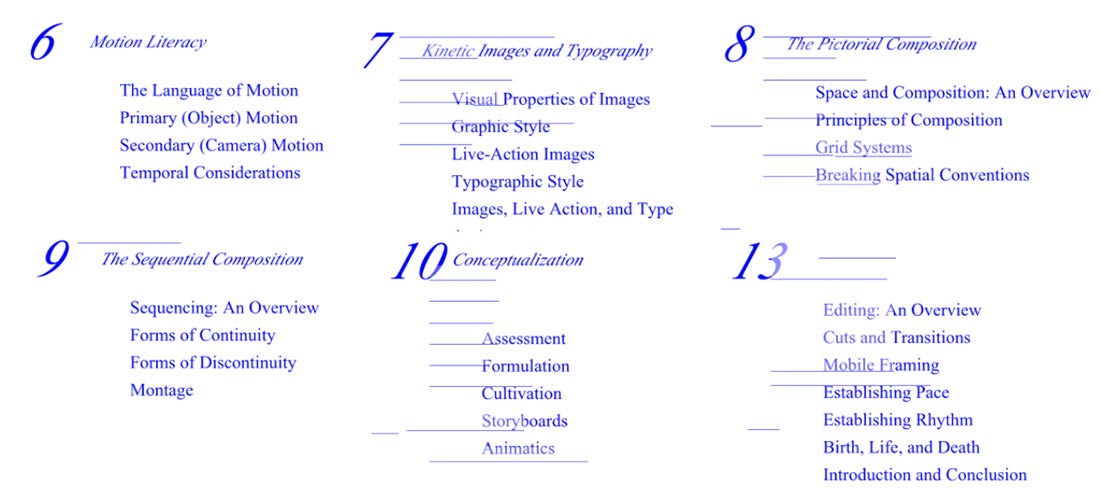
Key text: Motion Graphic Design, Applied History and Aesthetics, 2nd Edition By Jon Krasner(See example chapter index notes, as an overview.
What graphics and techniques would be necessary to make for each of these clips and structures?
– Jeff Desom’s panoramic recreation of Hitchcock’s Rearview Window
– Davy + Kristin McGuire’s installation of Hitchcock’s Psycho
– Mécaniques Discursives by Legoman
– The Ark by Romain Tardy
– 3Destruct by AntiVJ
Analyse what graphics and techniques might be required for your project.
Exploring After Effects
Some strengths of After Effects –
– Applying visual effects
– Colour grading / tinting
– Generating motion graphics from scratch
– Creating masked areas / transparency / shapes
– Organising images in sequence
A Crash Course in After Effects Compositing
– The interface. (workspace and workflow) layers on a timeline
– Creating a composition (composition basics)
– Adding layers to a timeline (layers overview) (splitting layers / sequencing layers)
– Adjusting parameters over time (using keyframes and the stopwatch)
– Using masks to control areas of an image.
– Using effects.
– Rendering and Exporting (overview)
After Effects CC 2017 Essential Training: The Basics
After Effects CC 2017 Essential Training: Motion Graphics
Rather than let visual effects drive your video – ask – what visual effects does this video need, then try and figure out a way to achieve that effect or look.
If video is a series of frames – how might these frames be treated? (Don’t limit the the use of After Effects to just animating digital images.. experiment with re-contextualised frames or footage to mix digital / analogue effects. What processes might help evoke your ‘perceptions in motion’? ) Some example treatments:
– frames printed out and shredded, repositioned
– frames printed out and made into origami models : Fast Film by Virgil Widrich (making of) (full clip)
After Effects TASK
- Create a 20 second video, of 1920 x 1080 size, which features at least 3 separate elements that over time, are changing either their opacity, scale, position or rotation.
- Create a feathered mask one of these elements
- Use a blending mode on one of these elements
- Use a blur effect on one of these elements
Very Useful AE Keyboard Shortcuts
(also see the full reference list)
When a layer is selected in the timeline, press these keys to show the properties:
S for scale, P for Position, R for rotate, T for opacity
Z for zoom, space bar + move mouse to navigate around a larger image
C cycle through camera tools, G – cycle through Pen tools
J or K – go to next visible important part of timeline ( eg an edit, keyframe etc )
i + o – navigates to beginning or end of a chosen layer on timeline.
U – show only properties with keyframes or expressions (+ press again to hide)
Up / Down / Left / Right arrows – move layer 1 pixel (+Shift = move 10 pixels)
L+R Arrows + CMD = go fwd / backwards 1 frame along timeline.
Painting and drawing with After Effects (Creative Cow tutorials below)
AE Basics 47: Paint 1 Creating and Customizing Brushes
AE Basics 48: Paint 2: Panel Options: One
AE Basics 49: Paint 3 Panel Options Part TWO
AE Basics 50: Paint 4 Panel Options Part THREE: Timeline
AE Basics 51: Paint 5 Panel Options Part FOUR: PATHS
AE Basics 52: Paint 6 Spot & Blemish Removal
And also relevant > AE Basics 30: The Write-on Effect
Making (and animating) abstract shapes in After Effects:
The Beauty of AE Shapes: Vector Art
AE Basics 17: Shape Layers Part 1
Creating masks / selecting areas of video to highlight or cover up…
Creating & Using Masks in After Effects
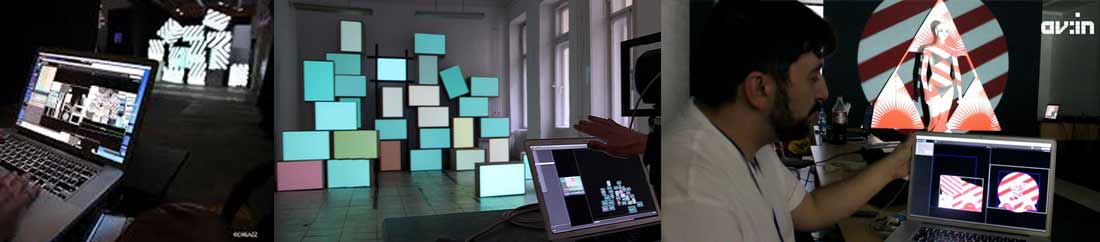
Projection Mapping With Madmapper
Inspiration
HC Gilje is the creator of the VPT software, and also an artist who has long been exploring audiovisual installation possibilities. Browsing his blog will reveal many projects and ideas.
“For many years I have been working with an over-arching concept I call Conversations with Spaces, where I look at different ways of transforming and activating spaces using light, projection, sound and motion: ephemeral media that creates temporary transformations of physical spaces which again influences how we experience these spaces.
Motion:I am interested in how motion passes through spaces, objects, bodies and landscapes.
Light:I am not particularly interested in the light source itself but in how light interacts with physical structures.
Light is only visible as manifestations in materials through reflection, refraction and shadows.”Lull by AVNYC
Immersive projection by Raven Kwok